Teachers Guide to MCQ.SG
The complete walkthrough for teachers and study-group leads
This guide follows the current teacher workspace and the learning experience your students see. Some school and worksheet controls only appear when they have been enabled for your organisation.
1. Getting Around
A teacher who owns a class lands in the Teacher Workspace. Students land on their own learning dashboard.

1The Teacher Workspace
The top-level areas are:
- Overview — Questions and Topics for the selected class, with activity cards above both.
- Students — Progress and Roster views.
- Worksheets — shown when worksheet access is available to one of your classes.
Use the class name at the top to switch classes. The account menu also lets you switch to the student dashboard.

2The Student Dashboard
Students see their daily goal, recent activity, practice choices, worksheets you have given out, and links to Progress and History. Their main button continues or starts Daily Practice.
2. Students and Roster
Students is a top-level workspace area. Progress is a fixed rolling 30-day view; Roster contains class administration.

1Progress and Triage
Active students are grouped by their last 30 days of practice:
- Needs Help — below 40% accuracy.
- On Track — 40% to below 80%.
- Flying — 80% or higher.
Students without recent practice appear separately as Inactive.

2Individual Student Profiles
Select a student to see their 30-day accuracy, all-time totals, weak areas, and attempt history. Topic, skill, session, and worksheet links can open this same profile with a useful filter.

3Roster and Class Level
In Roster, set the class level from Primary 3 to Primary 6, rename a student when the displayed name needs correcting, and help eligible students log in. Contact MCQ.SG to add or remove class membership.

4Reusable Student Groups
Create clearly labelled subsets such as “Demo support group.” Student groups can be edited or removed and then reused when choosing worksheet recipients.
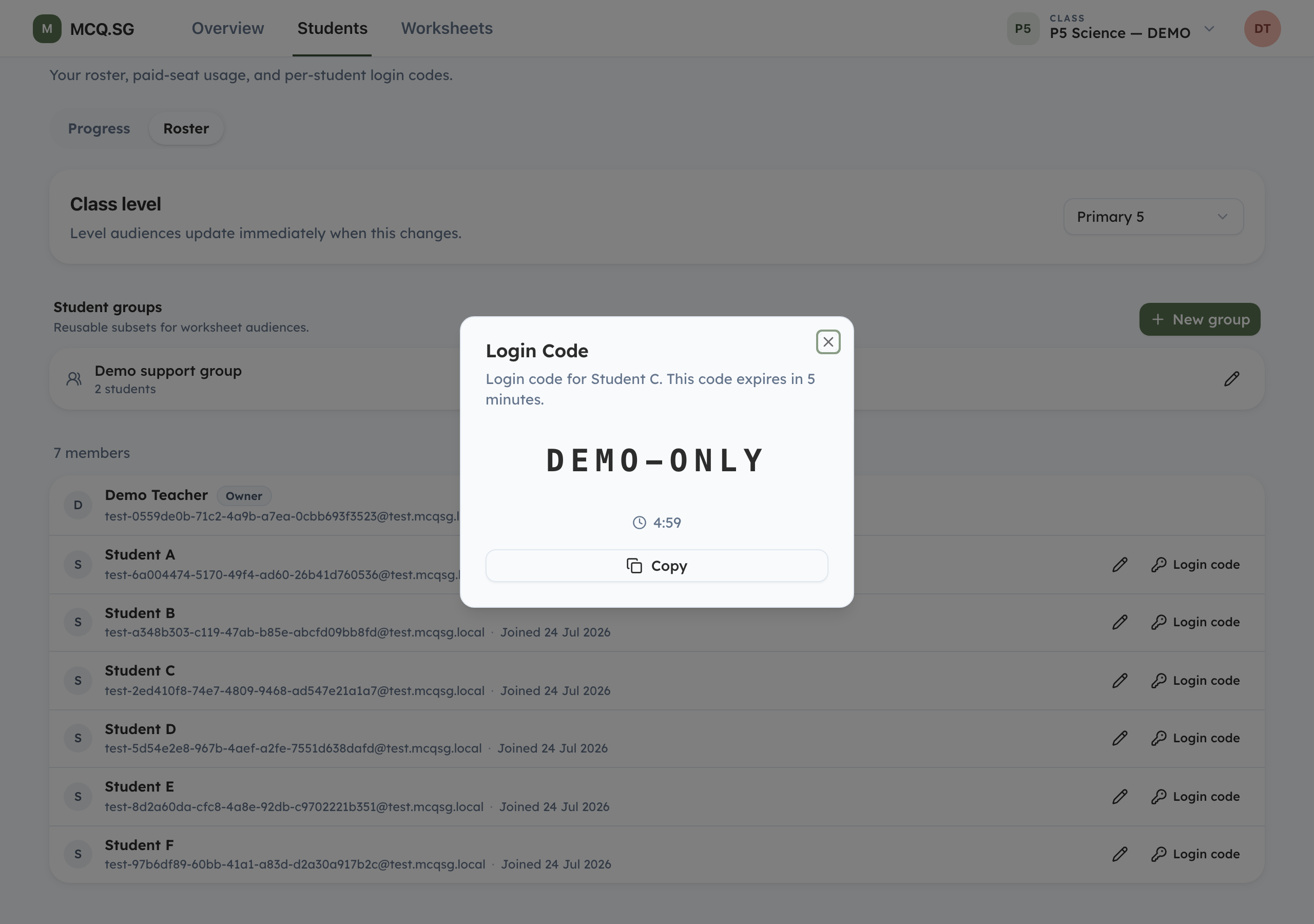
5Login Codes
Where available for school and non-profit classes, the key button creates a single-use code for an eligible student. The code expires after five minutes and is entered from the MCQ.SG login page.
3. Following the Class
Overview has two sections: Questions and Topics. Activity cards stay above both sections. Their period scope can be Last 7 days, Last 30 days, or All time. All time is the default.
1Questions
Questions shows how the class answered each item. Each question has one primary teaching classification, and the clearest class-wide patterns appear first. Open a card to see the exact outcome and the answer distribution by student.

2Bookmarks and Saved
Bookmark questions you want to revisit. Saved is an all-time list, so the date scope does not hide an older bookmarked question.

3Present to the Class
Choose Present, select one or more questions, and open the full-screen classroom view. Move with the arrow keys and reveal the answer after discussion. Presenter mode does not collect live answers from student devices.

4Topics and Skills
Topics lists topic and skill gaps in the active scope, weakest first. Select one to inspect the underlying attempts and identify who needs review.

5Activity cards
The cards at the top of Overview show questions answered, who practised, the practice trend, independent practice, and how students practised. Session and worksheet filters update the cards in place.
4. Worksheets
Worksheet authoring is available when the class belongs to an enabled school or tuition organisation. The workspace tab can also appear when you already have access to worksheets.
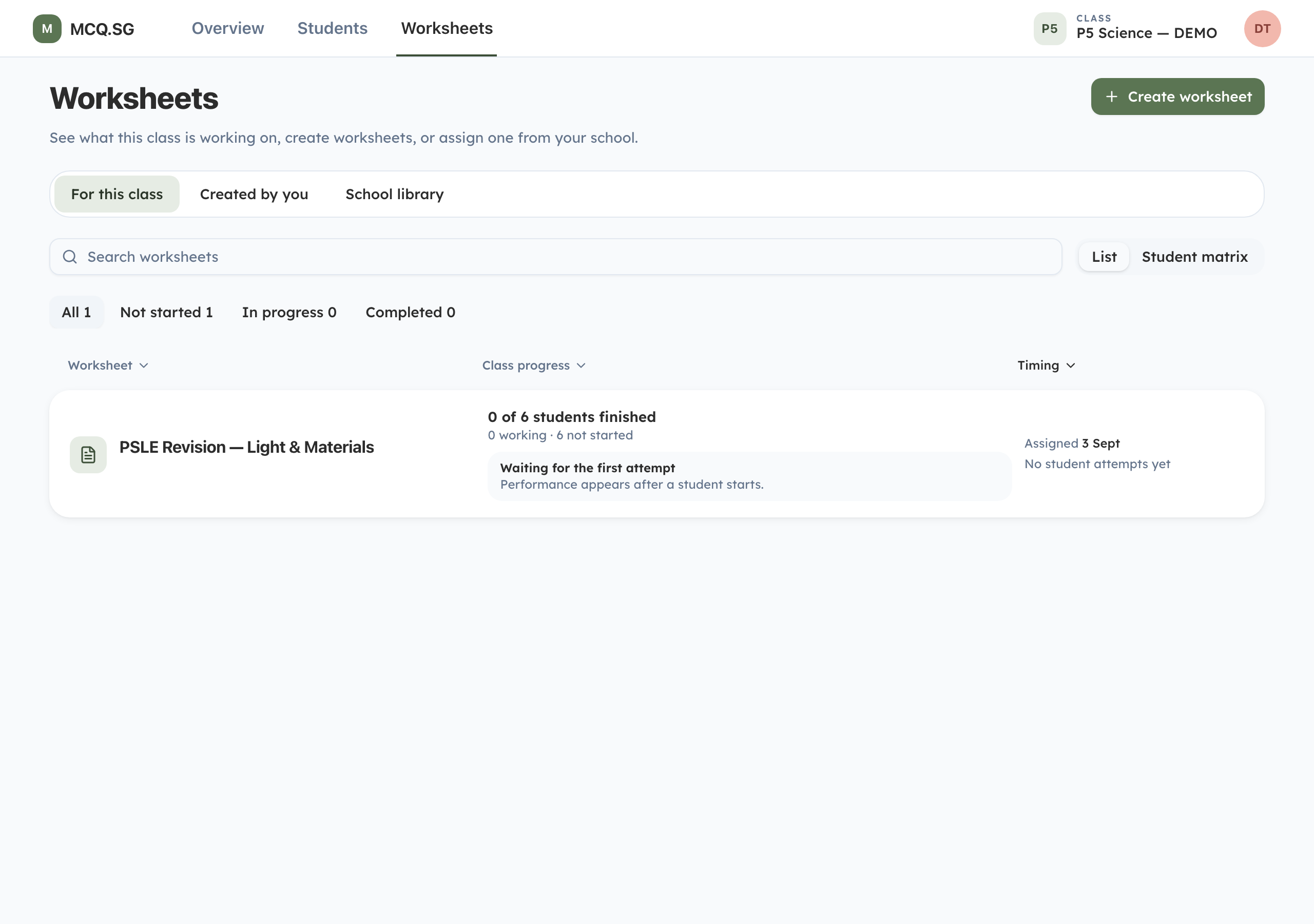
1The Library
For this class shows worksheets students can currently access, including assignments made by another teacher or for the whole level. Use Created by you for authoring and School library to find published worksheets from colleagues. In the class list, student completion and question responses appear together under Class progress, while Timing shows when the worksheet was assigned and the latest student attempt.

2Build a Worksheet
Choose the level, length, MCQ/OEQ mix, topics, skills, and difficulty. OEQ is available at every supported level from Primary 3 to Primary 6. Find questions, review the suggested set, replace or remove items, name it, and save.
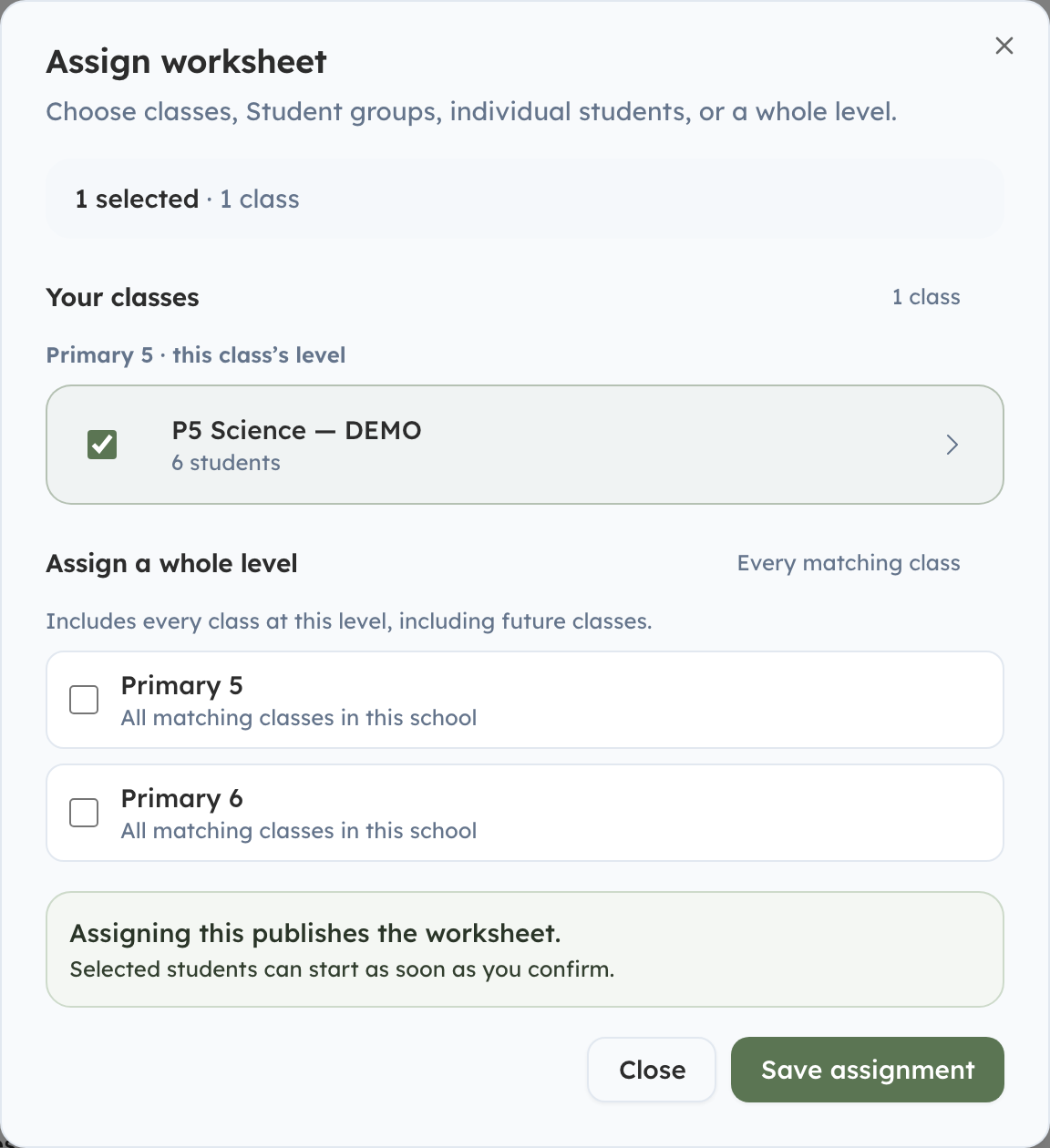
3Assign a Worksheet
Assign the worksheet to any combination of:
- Everyone in a class.
- A reusable Student group.
- One or more individual students.
- An eligible whole level or another class in the organisation.
Each teacher manages only their own assignment. Open Manage assignment, choose Edit assignment, and clear the final recipient to remove it. Another teacher’s overlapping assignment continues to provide access. Started work and results are retained.
If another teacher already covers everyone in the selected class, use Assign to other classes from the worksheet menu. The picker marks the current class as already assigned while leaving other recipients available.
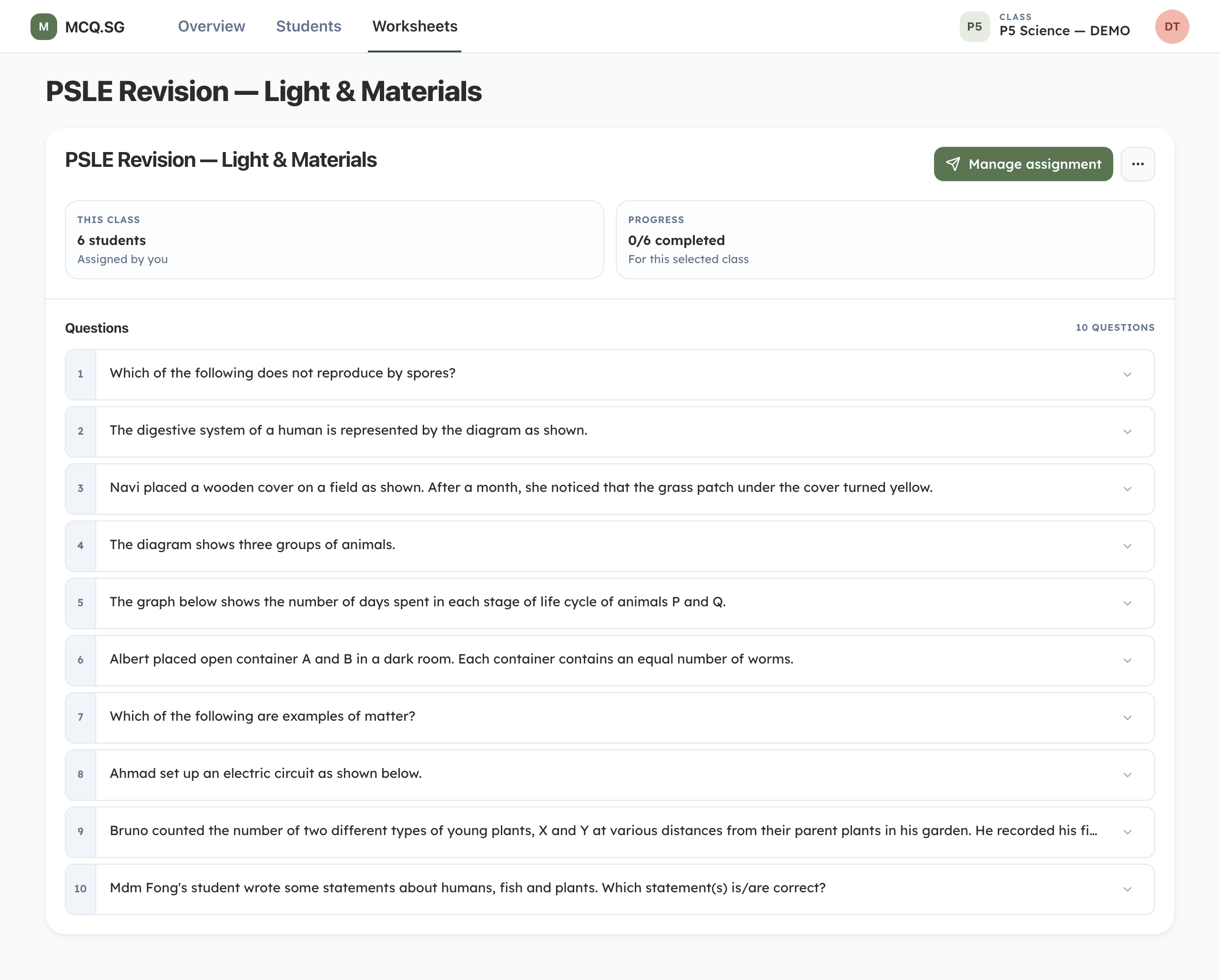
4Review and Reuse
The detail page keeps this class’s access and progress prominent. Use the worksheet menu for Preview, History, Assign to other classes, editing, and archive. History names who made each change and labels affected classes, levels, Student groups, or students. Student attempts stay in Progress and Results.
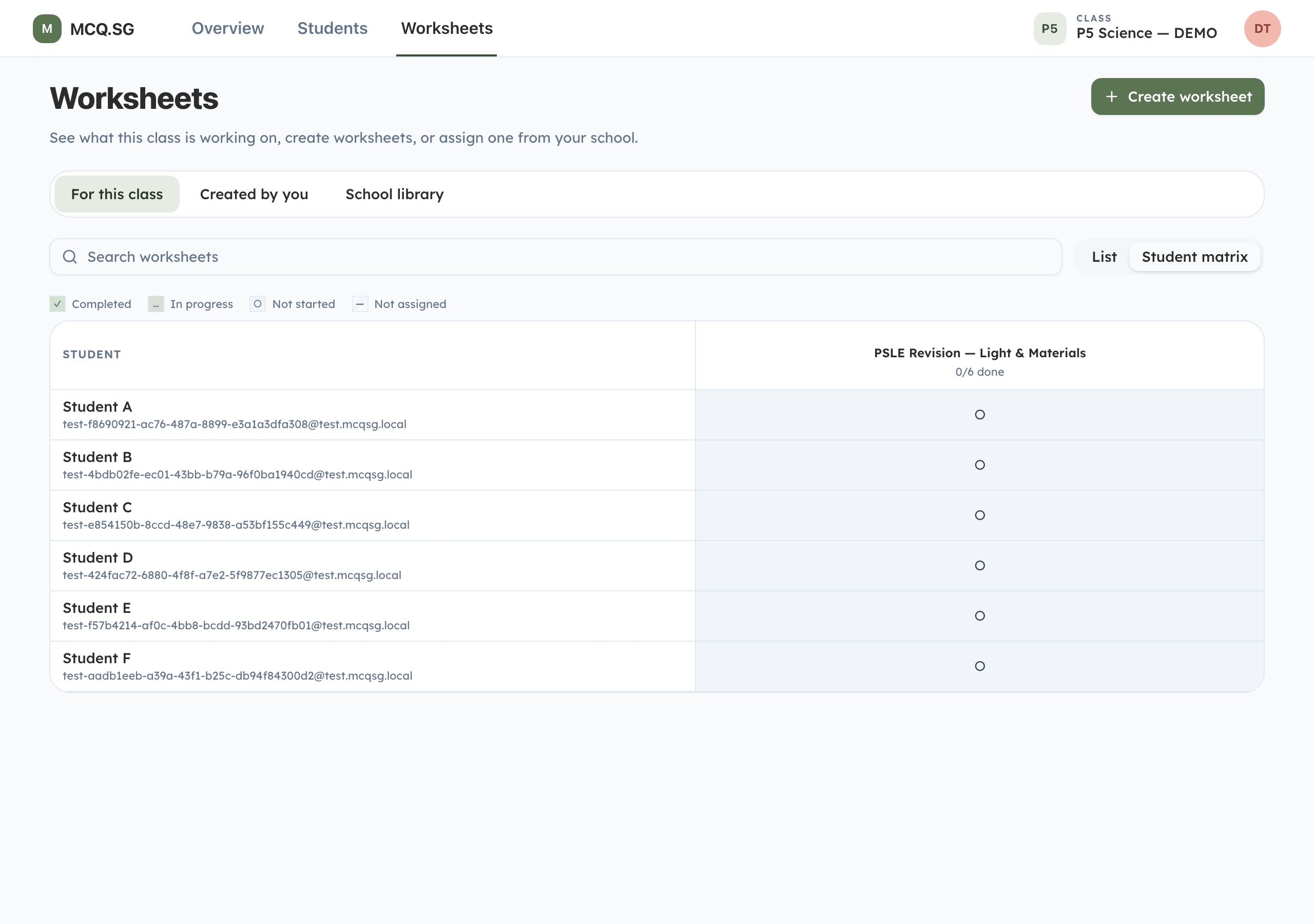
5Student Matrix
The Student matrix compares each student across the class’s worksheets. Search remains available, while list-only progress filters stay out of the matrix. Use the separate student and worksheet sort controls, the arrows, or horizontal scrolling to move through a larger set. Worksheet headers show the class’s completion rate, and in-progress cells show attempted questions.

6Results
See who has not started, is in progress, or has completed the work. As answers arrive, the results view adds scores and question-level evidence for the selected class.
5. What Students See
Students practise through Daily Practice, Focused Practice, and worksheets. MCQ and OEQ both include immediate learning support.

1Daily Practice
Daily Practice is the personalised default: a short set chosen from the student's level and recent work, with a daily goal that builds a regular habit.

2Open-Ended Entry Points
Students can use Surprise me for a quick OEQ start or How to use? for an explanation of the workflow before practising.

3Focused Practice
Students choose MCQ or OEQ, level, topics, difficulty, and length. MCQ sets offer 5, 10, 15, or 20 questions; OEQ sets offer 3, 6, or 9.

4Help Before Answering
Students can answer by tapping or typing, and supported fields include voice input. If they are stuck before answering, Need help? opens the Tutor for guided support without revealing the answer.

5MCQ Feedback
After an attempt, students see whether it was correct, a short explanation, and an expandable detailed explanation of why.

6Ask After an Attempt
Ask a question opens a question-specific Tutor chat with suggested prompts and text or voice input. OEQ uses the same pattern through Ask the tutor.

7Automatic OEQ Marking
Written answers are marked part by part, including partial credit. Students receive coaching, a suggested answer, and reasoning steps rather than only a tick or cross.
The screenshot is a representative example rendered with the same result components used by the app.
6. Teacher AI Tutor Controls
This section is conditional. If your class has no teacher policy control, no AI Tutor setting is shown.

1Class Policy
Depending on how the class is configured, Settings may provide:
- Simple control — turn student Tutor access on or off.
- School-hours control — available Monday to Friday from 7:30am to 1:30pm Singapore time.
Allow outside school hours keeps access on until the teacher turns the override off. These controls govern availability; they do not provide teacher access to student Tutor transcripts.
7. Reports for Parents
Where weekly parent reports are enabled, families receive a concise account of recent practice and can revisit it in the Learning Journal.

1The Weekly Report
It summarises questions answered, accuracy, topics, what is working, what needs attention, the current focus, and practical suggestions for home.
The screenshot is a representative example rendered with the same report components used by the app.
8. Student Progress and History
Students can review their own attempts and see how their mastery is developing.

1History
History groups past practice by date and can narrow the list to answers that need review or questions the student skipped.

2Progress
Progress shows overall mastery and breakdowns by topic and question type, helping students choose what to practise next.
Teachers Guide to MCQ.SG
Reviewed 24 July 2026.